
no-photo logo-and-name vertical-divider
Unlock signature how to add email signature in gmail
How to add an email signature in Gmail
Adding an email signature in Gmail looks like a two-minute job, until the image breaks, the signature vanishes on replies, or a pasted design turns into raw code. This guide covers how to add an email signature in Gmail on desktop, in the mobile app, how to paste HTML correctly, and per-address signatures, so it works the first time.
Last updated
TL;DR
To add an email signature in Gmail on desktop, open Settings (gear icon) → See all settings → General, scroll to Signature, click Create new, name it, paste or type your signature, set it as the default for new emails and replies, then click Save Changes at the bottom. It takes about 90 seconds.
How to add an email signature in Gmail on desktop
These are the seven steps to add an email signature in Gmail on a computer. They follow Google's official Gmail Help instructions, so the menu labels below match what you see on screen.
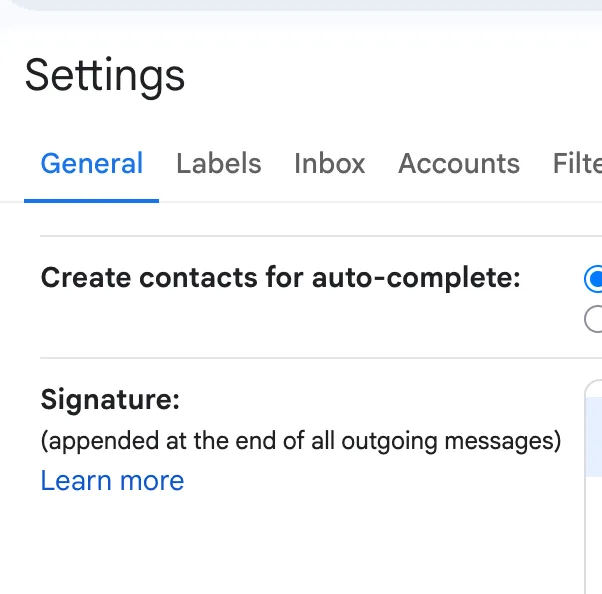
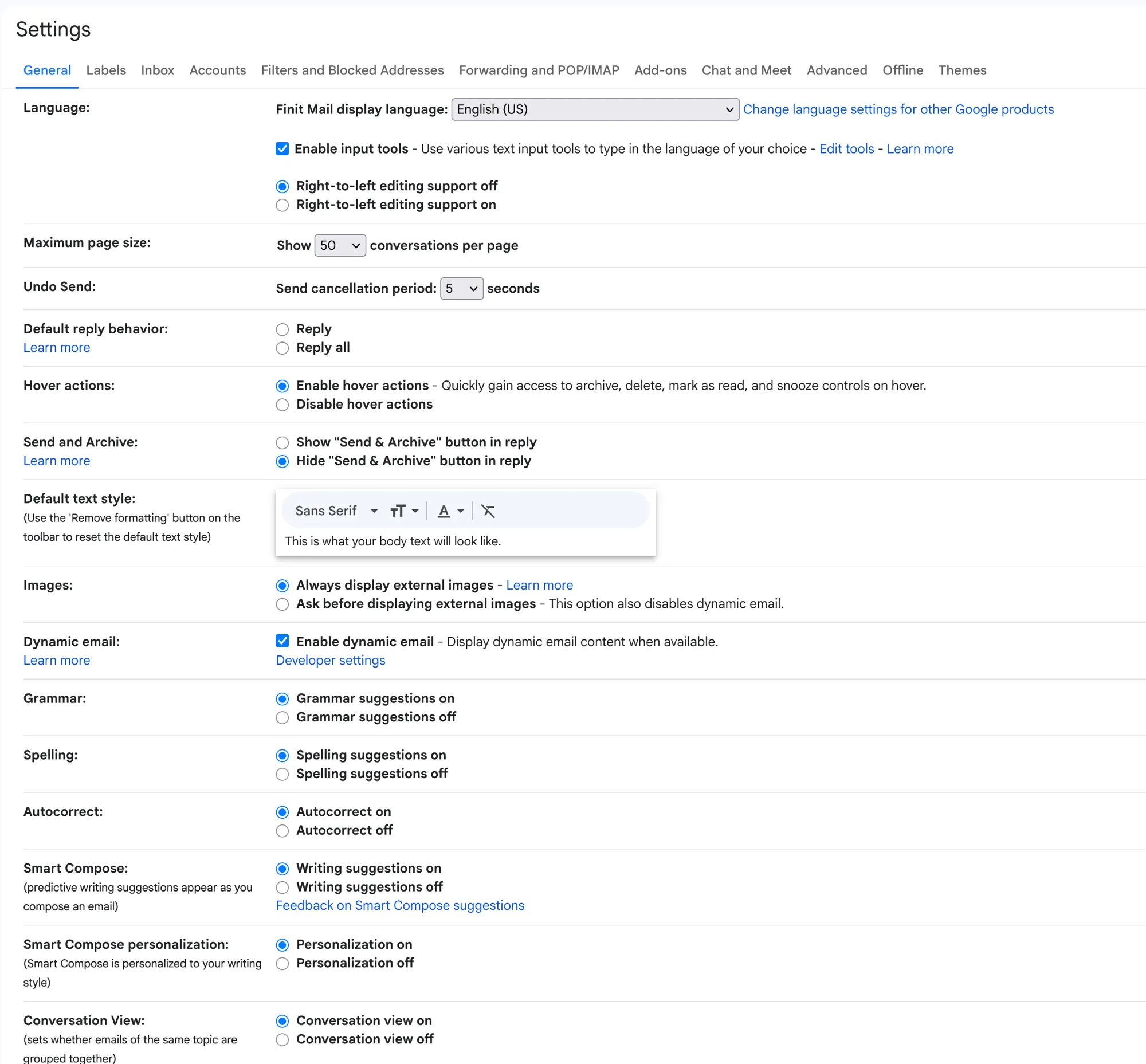
- Open Gmail settings On a computer, open Gmail and click the Settings gear icon in the top right, then click See all settings.
- Go to the Signature section Stay on the General tab and scroll down to the Signature section.
- Create a new signature Click Create new, give the signature a name (for example, "Main"), and click Create.
- Enter your signature Type your signature in the box, or paste a rendered signature copied from an editor. You can format text, add links, and insert an image.
- Set the signature defaults Under Signature defaults, choose your signature for "For new emails use" and for "On reply/forward use" so it appears on every message.
- Save changes Scroll to the bottom of the page and click Save Changes. Gmail does not save the signature until you do this.
- Send a test email Compose a new message to yourself and confirm the signature renders correctly, including any image and links.

How to paste an HTML signature into Gmail
Gmail has no field for raw HTML code. If you paste markup, you will see the tags as text. The fix is to copy the rendered signature (the visual output, not the code) and paste that into the signature box. Gmail keeps the links, fonts, and images from a rendered paste.
The cleanest source for that rendered output is an editor that exports a Gmail-safe signature for you. You can open the editor, customize one of the email signature templates, copy the result, and paste it using the steps above.
One caveat from Google's documentation: a Gmail signature is capped at 10,000 characters, and an embedded image counts toward that limit. Host the image at a public URL rather than pasting a large data-URI image, which is the usual cause of a signature that silently fails to save.
How to add a signature in the Gmail mobile app
The Gmail app keeps a separate signature from the desktop one. On Android, open the Gmail app, tap the menu, go to Settings, tap your account, then tap Mobile Signature and enter your text. On iPhone or iPad, the path is Menu → Settings → your account → Signature settings.
Mobile signatures are plain text only: no images, no links, no formatting. Keep the mobile version short (name, role, company, one contact line) so replies sent from your phone still look intentional.
How to set different signatures per address
If you send from more than one address in the same inbox using the "send mail as" feature, a drop-down appears above the signature box. Pick each address and give it its own signature. Google's Workspace guidance covers managing multiple signatures for different contexts.
This is the right setup when one identity is a personal alias and another is a company address; each thread gets the signature that matches who you are sending as.
Common Gmail signature problems
Most failures trace back to four things:
- No default set: the signature exists but never appears because the Signature defaults are blank.
- Missing on replies: "On reply/forward use" was left unset, so the signature only shows on new mail.
- Broken image: the image was hotlinked from a private or temporary URL instead of a public host.
- Code instead of design: raw HTML was pasted rather than the rendered signature.
Not sure what belongs in the signature itself? The anatomy of an email signature covers what to include and what to cut. Setting up Outlook or Apple Mail too? The Outlook signature guide and the Apple Mail signature guide cover the equivalent steps there.
Key takeaways
- Desktop: Settings → See all settings → Signature → Create new → set defaults → Save Changes.
- Set both "new emails" and "reply/forward" defaults or the signature disappears on threads.
- Paste the rendered signature, not raw HTML; host images publicly; stay under 10,000 characters.
- The mobile app uses a separate, plain-text-only signature.
Build a Gmail-ready signature
The editor exports a signature that pastes cleanly into Gmail, with hosted images so nothing breaks in the recipient's inbox.
Build your signatureQuestions about adding an email signature in Gmail
How do I add an email signature in Gmail?
On desktop, open Settings → See all settings → General, scroll to Signature, click Create new, name it, enter your signature, set it as the default for new emails and replies, then Save Changes. The whole flow takes about 90 seconds.
Why isn't my Gmail signature showing up?
Most often the signature exists but no default is set. Under Signature defaults, pick your signature for both "For new emails use" and "On reply/forward use." If it still fails to appear, check you saved on the right account or "send mail as" address.
How do I add an image to my Gmail signature?
In the signature editor, place the cursor, click the image icon, then upload or link an image. Host the image at a public URL; Gmail counts the image toward the 10,000-character limit and broken-linked images make the whole signature look broken.
How do I paste an HTML signature into Gmail?
Gmail has no raw-HTML field. Copy the rendered signature (not the code) from your generator, click into the Gmail signature box, and paste with Cmd+V or Ctrl+V. Gmail keeps the formatting, links, and images from the rendered paste.
Can I have different signatures for different email addresses?
Yes. If you use "send mail as," a drop-down appears above the signature box. Pick each address and give it its own signature. This is common for people sending from both a personal and a company alias in one inbox.
How do I change my signature on the Gmail mobile app?
Open the Gmail app → Menu → Settings → tap your account → Mobile Signature. Mobile signatures are plain text only and separate from your desktop signature, so they will not carry images or formatting.
Why does my Gmail signature lose its formatting?
You likely pasted raw HTML code instead of the rendered signature. Copy the preview output from your generator, not the code block. If formatting still strips, use a normal paste so Gmail keeps the styling rather than a plain-text paste.
How many signatures can I have in Gmail?
Gmail supports multiple signatures per account. Create each one under Settings → Signature, then choose which to insert per email with the Insert signature button while composing, or set one as the default for new mail and replies.
Does a Gmail signature work in replies too?
Only if you set it. Under Signature defaults, the "On reply/forward use" option controls this. Many people set new emails but forget replies, so their signature silently disappears from threaded conversations.
Is there a character limit for Gmail signatures?
Yes: 10,000 characters, and any embedded image counts toward that total. A clean text-first signature with one hosted image stays well under the limit; pasting large data-URI images is what pushes past it.